Posts

Showing posts with the label Computer Tricks

How to disable / prevent automatic updates in Firefox browser
Image
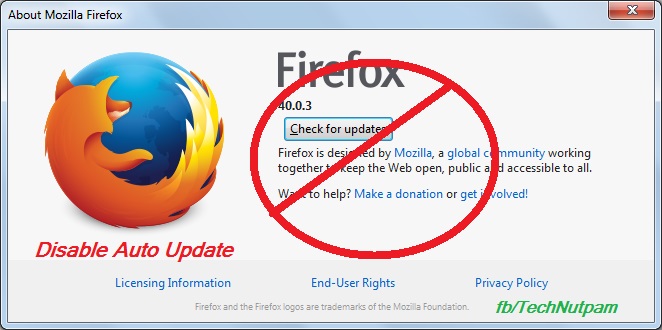
Mozilla always releases updates to add new features / solve security issues that exist in older versions of Firefox. In Firefox by default it may update automatically and install a newer version. When that happens, some of your add-ons may stop working. Some time because of our internet connection you may want to stop auto updates. Bellow are the steps to prevent automatic updates in Firefox browser. 1.  In Firefox menu bar Click Tools menu and select Options.  If you are not find menu bar then Press Alt+T in keyboard to get Menu bar. Else you can use Firefox's Open menu short-cut  in the top right side of fire fox then select "Options" Or type "about:preferences" in Firefox address bar 2. Click “Advanced” menu in Options 3. Select update Tab in “Advanced” menu 4. Now select "Never check for updates (not recommended: security risk)" options under Firefox updates. You can also select "Check for updates, but let me choose whe...
How to Take Screenshot with Mouse Pointer

Image
In my previous post ( Print a Screen with Mouse Cursor ) I have explained simple way to add mouse pointer in the screenshot. now I am going to explain How to take Screenshot with Mouse Cursor using free tools. Bellow steps will tell you How to take Screenshot with Mouse pointer. Step 1: Download Free Screen Capturer from Extensoft website link  and install it. Step 2: Open Free Screen Capturer by clicking Start Screen Capture  from start menu. Step 3: Open the Window/Application you you want to capture (take Screenshot) it. Step 4: Now Press the "PrtScr" (print screen) button on your keyboard then it will open the Screen Capturer window and it will ask you whether you want to capture the full screen, an application window or a region of your screen. If you want to  record your screen then click animation option under capture mode. and it will captures sequences of screenshots as animated video as WMV (Window Media Video) format. ...

How to remove all hyperlinks in Microsoft Word

Image
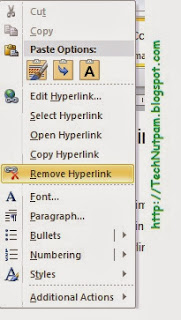
When we work with Microsoft word Document sometimes we need to remove hyperlinks from Word document contents. It is not difficult to remove hyperlink from document. This Article lists two available methods in MS Word for removing all hyperlinks in Word Document. 1.       Remove hyperlinks one by one 2.       Remove all hyperlinks by using One Shortcut 1. Remove hyperlinks one by one In this Method you can remove hyperlinks One by One. Step1:              Right click on the hyperlink in Word document. Step 2:           Click  Remove Hyperlink  from right-click menu.  It is easy to remove a hyperlink in this way, but to remove all hyperlinks in the document will require much time of right-clicking and removing one by one. So if you want to remove All Hyperlinks in one simple method. 2. Remove all h...

Print a Screen with Mouse Cursor - How to Print Screen with Mouse Pointer

Image
We are always using the print screen button in keyboard to print the screen i.e. window. Sometimes we may want to print the screen with mouse cursor also. That time it is not possible in  Windows 7  to print screen with mouse pointer [cursor]. I am not sure about windows vista or windows XP or other earlier version of windows. There are two solutions available to print the screen with mouse pointer. Option 1: The first option is simple to use. Use normal print screen option to print the screen and add the mouse cursors using image editing tools like paint Photoshop etc. If you want the Mouse cursor images just take it from the internet sources. If you type Mouse cursor in Google Images you can get all the icons immediately. Save the Mouse cursor icons in your computer. Now go to any image editing tools like Photoshop or Microsoft Paint or Gimp or others. Just Paste the mouse cursors in any place of your already captured Screen image. Option 2: In this solution you will do...