Posts

Showing posts with the label Windows

Windows 7 – How to display file extensions

Image
File extensions are usually preceded by a full stop and indicating the format of the file. By default file extensions will be hidden in windows file explorer. Follow the below steps to display the file extension in windows 7 Open Windows Explorer (or Use short cut Windows key + E ) Click the Alt button on the keyboard to display the file menu Then select Tools and Folder options Open the View tab then de-select ‘ Hide extensions for known file types’ Click ‘OK’ to save the changes File extensions will now be visible in Windows Explorer.

How to Turn off / Disable Automatic Updates in Windows 10

Image
From Windows 10, Microsoft made Operating system to automatically check and install all the updates  automatically. Windows 10 automatically receives all the new updates by default.But some time because of some reason may be if you have limited internet connection you may not want to update your Windows 10 Operating system. Some of the Windows 10 Editions like Professional and Enterprise have access to group policy and registry settings to delay the Updates. But For windows Home users do not have direct option to turn off downloading Automatic Updates. We have a way to stop updates from automatically downloading using the metered connection option. Steps to Prevent windows to download Updates automatically: Step 1:  In start menu go to Windows Settings and click Network and internet. In that open Wireless network setting by clicking Wi-Fi link in left menu or you can simply search for Change Wi-Fi settings in Start Menu or Cortana. Step 2: Click Advanced Options/ ...

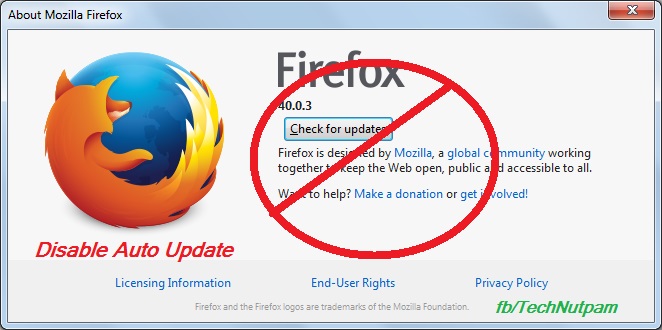
How to disable / prevent automatic updates in Firefox browser

Image
Mozilla always releases updates to add new features / solve security issues that exist in older versions of Firefox. In Firefox by default it may update automatically and install a newer version. When that happens, some of your add-ons may stop working. Some time because of our internet connection you may want to stop auto updates. Bellow are the steps to prevent automatic updates in Firefox browser. 1.  In Firefox menu bar Click Tools menu and select Options.  If you are not find menu bar then Press Alt+T in keyboard to get Menu bar. Else you can use Firefox's Open menu short-cut  in the top right side of fire fox then select "Options" Or type "about:preferences" in Firefox address bar 2. Click “Advanced” menu in Options 3. Select update Tab in “Advanced” menu 4. Now select "Never check for updates (not recommended: security risk)" options under Firefox updates. You can also select "Check for updates, but let me choose whe...

How to Take Screenshot with Mouse Pointer

Image
In my previous post ( Print a Screen with Mouse Cursor ) I have explained simple way to add mouse pointer in the screenshot. now I am going to explain How to take Screenshot with Mouse Cursor using free tools. Bellow steps will tell you How to take Screenshot with Mouse pointer. Step 1: Download Free Screen Capturer from Extensoft website link  and install it. Step 2: Open Free Screen Capturer by clicking Start Screen Capture  from start menu. Step 3: Open the Window/Application you you want to capture (take Screenshot) it. Step 4: Now Press the "PrtScr" (print screen) button on your keyboard then it will open the Screen Capturer window and it will ask you whether you want to capture the full screen, an application window or a region of your screen. If you want to  record your screen then click animation option under capture mode. and it will captures sequences of screenshots as animated video as WMV (Window Media Video) format. ...

Print a Screen with Mouse Cursor - How to Print Screen with Mouse Pointer

Image
We are always using the print screen button in keyboard to print the screen i.e. window. Sometimes we may want to print the screen with mouse cursor also. That time it is not possible in  Windows 7  to print screen with mouse pointer [cursor]. I am not sure about windows vista or windows XP or other earlier version of windows. There are two solutions available to print the screen with mouse pointer. Option 1: The first option is simple to use. Use normal print screen option to print the screen and add the mouse cursors using image editing tools like paint Photoshop etc. If you want the Mouse cursor images just take it from the internet sources. If you type Mouse cursor in Google Images you can get all the icons immediately. Save the Mouse cursor icons in your computer. Now go to any image editing tools like Photoshop or Microsoft Paint or Gimp or others. Just Paste the mouse cursors in any place of your already captured Screen image. Option 2: In this solution you will do...

Most Useful Keyboard Short Cuts For Microsoft Windows

Image
Most Useful Keyboard Short cuts For Microsoft Windows CTRL+C ( Copy) This Short cut used to copy the selected item and put it into the clipboard CTRL+X (Cut) This key board Short cut (ctrl + X) used to cut the selected item and put it into the clipboard CTRL+V (Paste) The paste option used to paste the copied or cut item from the clipboard CTRL+Z (Undo) The Undo used to go to the previous step DELETE (Delete) Delete key is used to delete the selected item and it will placed the item into the Recycle Bin SHIFT+DELETE Delete the selected item permanently without placing the item in the Recycle Bin CTRL while dragging an item This will Copy the selected item CTRL+SHIFT while dragging an item This method used to Create a shortcut for  the selected item F2 key F2 key I used to Rename the selected item or file CTRL+RIGHT ARROW This is used to Move the insertion point to the beginning of the next word CTRL+LEFT ARROW ...

How to Insert Special Text Characters Symbols in Photoshop

Image
In Photoshop when you creating a document, sometimes you may want to insert special character or symbols like Copyright © , Registered ® or Trademark ™ or currency symbols (¥, £, ¢, etc.) or any Special Symbols ( ¤ ª ß ⅔ ⍵ ⍺ ① ☹ ♞ ♚ ♠ ♬ ♪ ☭ ☁ ☼ ♥ ☊ « ☺ » º and etc..) which is not available in keyboard. It is possible to insert such symbols in Photoshop but it is somewhat difficult. We can use the easiest way to insert text special character using Character Map program in Microsoft Windows. This will used to insert a special character in all the documents not only for Photoshop. You can use this method to insert the special characters like trademark, Copyrights, or others in any version of Photoshop like Photoshop CS2 or Photoshop CS3 or Photoshop CS4 or the latest versions. The following instructions are used to describe how to insert symbols in Photoshop using Character map. Step 1: In Windows Vista, Windows 7, Windows 8 or higher version of Windows, select “Chara...

Download New Genuine Microsoft Windows 8 Professional Edition with key

Image
Microsoft Windows 8 Professional edition is simply called as Windows 8 Pro is the new version of Microsoft’s Operating system which is launched on Nov 2012. You can download this Windows 8 Operating System and its key from Microsoft’s official Web Store . Note that using unofficial versions of Microsoft’s products and other Serial keys is punishable. Microsoft did not provide its operating system as Free of Cost. You can download applications for windows 8 from their websites and also you can use various free edition of software are available from their official websites.

Microsoft Launched Windows 8 Operating System

Image
Microsoft Launched Its Most awaited Operating System Windows 8 on 26-10-2012. Now Its Available in its Web Store for $39.99 Or you can buy Windows 8 Pro for $69.99 ERP at a participating retailer of Microsoft. This windows 8 Operating system provides New User Interface with power full experience to the tablet users as well as mobile user with touch Experience you can view the release preview video here To Download Microsoft Windows 8 Operating System From Web Go to the Microsoft’s Webstore and Click the buy windows 8 link . You can also download the Microsoft products for windows 8 from the Microsoft website.