Posts

Showing posts with the label Google

Top Free and Best Android Music Player Apps with no Ads
Image
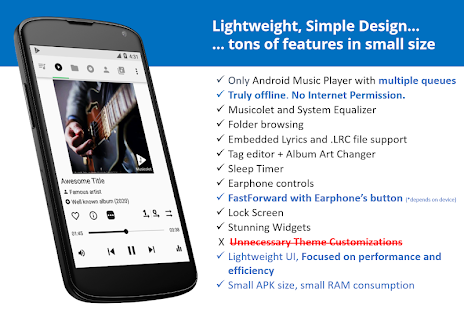
There are numerous free music player apps for Android available in the google play store, but they are showing lot of advertisements and they will ask many permissions. If you have a privacy concern and do not want to see the unwanted ads then below are the best and top Android Music Players which does not show any advertisements and they are available for free and they wont ask much permission. 1. Musicolet Music Player [Free, No ads] Musicolet is an ad-free music player and It has no In-App purchase and completely free music player app for android devices and it supports wide range of android versions. Musicolet Music Player got 4.7 out of 5 ratings and 1,000,000+ people already installed via Google play store as of today. Musicolet Music Player size is about 3.4 MB. Musicolet don't even use Internet permission (a.k.a. network access permission). (You can check this in 'Permission Details' at the bottom of our app-page in Play Store.) So it cannot send/receive...
How to Prevent / Turn Off In-App Purchase in Android phones and Tablets

Image
In Android devices there is no direct option to disable in-app purchases. But this method will ensure that you have to enter your Google account password before buying anything for both paid applicaion and in-app Purchases through Google play store Follow the bellow steps to Turn Off In-App Purchase in Android phones and Tablets Step 1 : Open Google Play store and tap the hamburger icon three horizontal lines on the top-right corner. Step 2 : Tap Settings in the menu Step 3 : Tap Require authentication for purchases under user controls menu Step 4 : Select For all app purchases through Google Play on this device option from the Require authentication popup . Step 5 : Enter your Google account password then tap OK . By using this method you can protect In-App Purchases in Any Android phones and Android  Tablets which running in any version of android. If you Like this post please share with your circle.

How to Get Invite for Google Inbox

Image
How to Get Invite for Google Inbox Google Inbox is the new way to organize your Emails using the concept of "Bundles". Google Inbox is a Google's email app with lot of futures and it is available for Android phones (4.1 and up), iPhone (iOS 7 and up), and Chrome browser on a computer. Currently, users can access Google Inbox through invitations only. How to get an invite for Google Inbox? There are two ways to get an invite for Google Inbox: Ask your friend who already using Gmail Inbox     People who already using Google Inbox  can able to send invites to their friends. When you get an invite from your friend, you'll be able to start using Inbox as soon as you download the Inbox app on your Android or iOS phone. Get an Invite from Google     You can request Google Team for invite by sending an email to inbox@google.com .  You will get an invitation email to use Google Inbox from the Gmail team. Below video will tell How G...

Google Celebrates its Birthday with Special Doodle 27 September

Image
Search engine king Google Officially celebrates its  Birthday on September 27  with its special Birthday special Doodle Logo. In January 1996 Two PhD students Larry Page and Sergey Brin  at Stanford University  created Google as a research project .  The domain name for Google was registered on September 15, 1997 and the company was incorporated on September 4, 1998. It was based in the garage California.  Craig Silverstein, a fellow PhD student at Stanford, was hired as the first employee. Currently Google has offices in more than 40 countries with more than 40000 Employees. From its 15-year anniversary Google started celebrating its Birthday celebrated on September 27, 2013, although it has used other dates for its official birthday. The reason for the choice of September 27 remains unclear. Whatever may be without Google life will became harder.. Google makes everything easy..  So Will Wish Google on its special day.   Happy Birthd...

Google Celebrates 15th Birthday with its New Search Algorithm and Special Doodle

Image
Search Engine giant Google Celebrates its 15th Birthday with its Special Game Doodle and updating their search algorithm code named “Hummingbird”. Fifteen years back in 1998 two Stanford students S ergey Brin and Larry Page founded a company called Google , named after the mathematical term Googol , which represents the number one followed by a hundred zeros.   Actually it started on September 7, 1998 , but the official “birthday” was later switched to September 27 . Now Google is the No1 Search provider and ranked no1 in Alexa traffic rank.   They are growing day by day in all technologies.  Do you want to see how Google was there in 1998. Just type Google in 1998 and see the result. Google also celebrated their 15th year by updating their search algorithm code named “ Hummingbird” Happy birthday Google…

How to Block mails from certain senders in Gmail

Image
In Your Inbox Sometimes you may get unwanted mail that isn't necessarily spam. Gmail always filter most of the Unwanted Messages and put it in the Spam box . But you may want to block those Emails from specific addresses or some specific domains. Currently Google’s Gmail Does not support to block messages from specific addresses or domains. But Gmail Give an Option to set up a filter to send your Unwanted Mails Directly to the Trash Box . The following steps and corresponding images will help you to set up a filter to block and delete your unwanted mails from your Inbox Login to your Gmail Account with your User name and Password Click the down arrow in your Search box which is there in the top of the Gmail page. Now a dropdown window will appear to specify your search criteria. Enter your search criteria like from, to, mail subject or other details in the given text boxes. And click the search button to check whether your search worked correctly or not. ...

Google talk – Adding Screen Sharing - How to Add Screen sharing in Google Talk

Image
Google Talk is widely used by many users around the world. Many nice features can be added to it including screen sharing. This article explains how to use Screen Sharing from Yuuguu with Google Talk. What is Screen Sharing? Screen sharing technology is used to see the activities and functions (work) done on one computer from another computer. This technology is used in various fields of work for doing their work in a better way. For example, it is used for troubleshooting computers, working with office staff, teaching computer-related subjects through the Internet, etc. This technology can also be used to present live software demos. This article is about adding screen sharing feature to Gtalk to do screen sharing in a more safe and user friendly way. Why Should We Add Screen Sharing to Gtalk You may ask me why the screen sharing feature should be added to GoogleTalk when there are many other options? The software which provides screen sharing facility ...

Google- Search Engine Giant

Image
History of Google: In the year 1998 , Larry Page and Sergey Brin from Stanford University built a Search engine called “ BackRub ” that used links to determine the importance of individual web pages. Later they named it as Google . The name Google is came from the word “googol” , the mathematical term for a 1 followed by 100 zeros. It is incorporated on September 4, 1998 . In August 18, 2004 , Google became Public ( NASDAQ ) and it Offers 19,605,052 shares.

Rail Radar Application in Indian railways-Easy way to find Train Location and its Timings

Image
Rail Radar Application in Indian railways-Easy way to find train location and its time by late Rail Radar Application using Google map introduced in Indian railways. This Application finds the exact location of the Indian Trains. This Application is available in online provided by Indian railways. By using this application we can find the exact location of the Trains and its way path. This application provides approximately 6500 train routes and its timings. When we provide train number or train name then this Application gives the full details about the train and its exact location.it also gives whether the train comes by late or right time.     Update : URL Changed to http://enquiry.indianrail.gov.in/ntes/ New Look: The URL link for Rail Radar Application is Given bellow  http://railradar.trainenquiry.com/

Google SMS Chat- A Product From Google- How To Send SMS Via Google Chat

Image
Google SMS Chat Now Google Introduce New SMS Service Future to Send SMS Mobile in All over the world. Google gives 50 SMS credits to all the users and the credit will increasing by 5 when replying to the message each time   . How to Send SMS: It is easy to send SMS From Google Chat box  and the Reply message will appear in the chat box. The following steps explain how to send SMS form your Google chat. STEP 1 In Chat Search box Type the phone number you want to send an SMS to and click Send SMS and add the Contact Name and Select Country in the provided box. STEP 2 Then the contact name appears in the chat box user names. STEP 3 Click the user and type your message in the chat box STEP 4 Now you are done. Your message sent to the corresponding users mobile. STEP 5 When they reply your message then the reply will appear in your chat box. Note that when you get reply then the message credit increased b...