Posts

Showing posts with the label Android

How to download/Save WhatsApp Status or stories without using any App
Image
I have seen people were using many down loaders to download WhatsApp status video, pictures and messages then save it in their Phones. There is a simple way to save the WhatsApp messages. When you see the status of any WhatsApp friends, the media files get automatically downloading to the hidden. Status folder which is located in your phone/ tablet's internal storage. You can manually save those files into your Phone. Using the following simple steps, you can download/Save WhatsApp Status or stories without using a downloader app Step1: Open WhatsApp Step 2: Go to Status tab and Watch your friend’s WhatsApp status of whom you want to save. Step 3: Now open File Manager App in your phone or tablet. Step 4: Enable “show hidden folder” Option in your file manager. All the file managers has this option in their menu. Step 5: Open WhatsApp folder. Step 6: In WhatsApp folder, open media folder. Step 7: In the media folder there is a faded folder, named ”.Statuses...

WhatsApp Hack- How to format and send your messages in Bold, Italic Strike-through or Monospace

Image
WhatsApp has many hidden features and most of the  people does not know how to use it. In WhatsApp messenger it is possible to make your message texts bold or italics, add a strike-through effect and also you can change WhatsApp font to monospace. Here is the simple hake that allows you to format and send your messages in Bold, Italic Strikethrough or Monospace in WhatsApp messenger . This works in both iPhone and Android OS. How to format and send your messages in Bold, Italic Strike-through or Monospace Formatting your messages in WhatsApp allows you to format selected text inside your messages. Bold To bold your WhatsApp message, place an asterisk on both sides of the text message, like bellow *TechNutpam* Bold WhatsApp message Italic To italicize your message in WhatsApp , you need to place an underscore on both sides of the text, like below _TechNutpam_ WhatsApp Format text Italic Strikethrough To strike through your message in WhatsApp, Just p...

Top Free and Best Android Music Player Apps with no Ads

Image
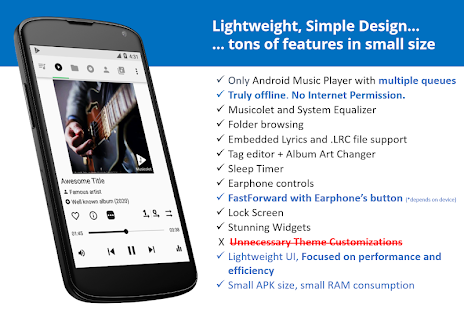
There are numerous free music player apps for Android available in the google play store, but they are showing lot of advertisements and they will ask many permissions. If you have a privacy concern and do not want to see the unwanted ads then below are the best and top Android Music Players which does not show any advertisements and they are available for free and they wont ask much permission. 1. Musicolet Music Player [Free, No ads] Musicolet is an ad-free music player and It has no In-App purchase and completely free music player app for android devices and it supports wide range of android versions. Musicolet Music Player got 4.7 out of 5 ratings and 1,000,000+ people already installed via Google play store as of today. Musicolet Music Player size is about 3.4 MB. Musicolet don't even use Internet permission (a.k.a. network access permission). (You can check this in 'Permission Details' at the bottom of our app-page in Play Store.) So it cannot send/receive...

Differences Between GPRS, EDGE, 3G, HSPDA, HSPA+ And 4G LTE

Image
While connecting to a internet network with your mobile phone you may see various symbols like E, 3G, H, H+, LTE but some people may not know what are the differences between these symbols E, 3G, H, H+, LTE. Here I am  sharing my little knowledge about this topic in case you might confused about it too like me :). E - EDGE 3G - 3rd Generation H - HSDPA H+ -HSPA LTE - 4G Long Term Evolution These are the different generations of wireless communication technology categorized based on the Speed range and it simply refers 1G, 2G, 3G, 4G etc. Bellow are the Differences Between GPRS, EDGE, 3G, HSPDA, HSPA+ And 4G LTE networks GPRS (General Packet Radio Service)  General Packet Radio Service (GPRS)  is a packet-based wireless communication service. In Packet based communication data is broken into packets before being transmitted to the network.  It is a 2G (2nd Generation) technology network that supports the download speed of up to 114Kbps. The main lim...

How to Prevent / Turn Off In-App Purchase in Android phones and Tablets

Image
In Android devices there is no direct option to disable in-app purchases. But this method will ensure that you have to enter your Google account password before buying anything for both paid applicaion and in-app Purchases through Google play store Follow the bellow steps to Turn Off In-App Purchase in Android phones and Tablets Step 1 : Open Google Play store and tap the hamburger icon three horizontal lines on the top-right corner. Step 2 : Tap Settings in the menu Step 3 : Tap Require authentication for purchases under user controls menu Step 4 : Select For all app purchases through Google Play on this device option from the Require authentication popup . Step 5 : Enter your Google account password then tap OK . By using this method you can protect In-App Purchases in Any Android phones and Android  Tablets which running in any version of android. If you Like this post please share with your circle.

How to Get Invite for Google Inbox

Image
How to Get Invite for Google Inbox Google Inbox is the new way to organize your Emails using the concept of "Bundles". Google Inbox is a Google's email app with lot of futures and it is available for Android phones (4.1 and up), iPhone (iOS 7 and up), and Chrome browser on a computer. Currently, users can access Google Inbox through invitations only. How to get an invite for Google Inbox? There are two ways to get an invite for Google Inbox: Ask your friend who already using Gmail Inbox     People who already using Google Inbox  can able to send invites to their friends. When you get an invite from your friend, you'll be able to start using Inbox as soon as you download the Inbox app on your Android or iOS phone. Get an Invite from Google     You can request Google Team for invite by sending an email to inbox@google.com .  You will get an invitation email to use Google Inbox from the Gmail team. Below video will tell How G...

How to Enable / Disable or Remove WhatsApp Blue Tick marks (Read Receipts) for Read Messages

Image
WhatsApp recently introduced new update for android and iPhones to show two blue check marks (tick marks) next to the messages if the recipient has read your message. This feature is added with no privacy setting to disable read receipts.  Now In the latest version of WhatsApp (version 2.11.452) giving feature to enable or disable Blue Tick marks (Read Receipts). This Latest WhatsApp version 2.11.452 available to download in WhatsApp Official website. Following are the simple Steps to enable or disable Blue Tick marks  (Read Receipts) in WhatsApp. Step1: Go to the WhatsApp Official website ( www.whatsapp.com/Android/ ) and download the Official WhatsApp APK file. Step2: After download the apk enable installation of apps in settings. To enable,             Go to settings menu and enable ' Allow installation of apps from Unknown Sources ' in the Security tab under Unknown Sources. Step3: Inst...